Clutch Functionality: Force to Update Set

Forcing records to an update set
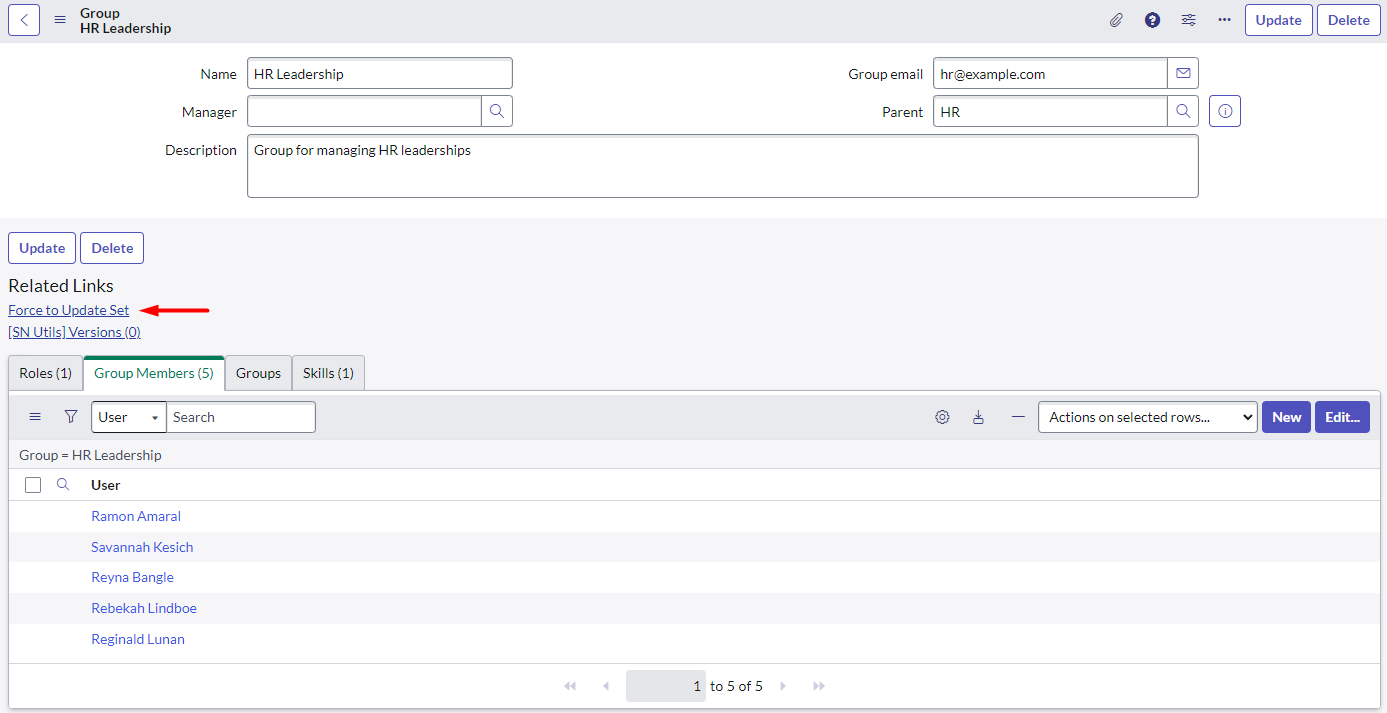
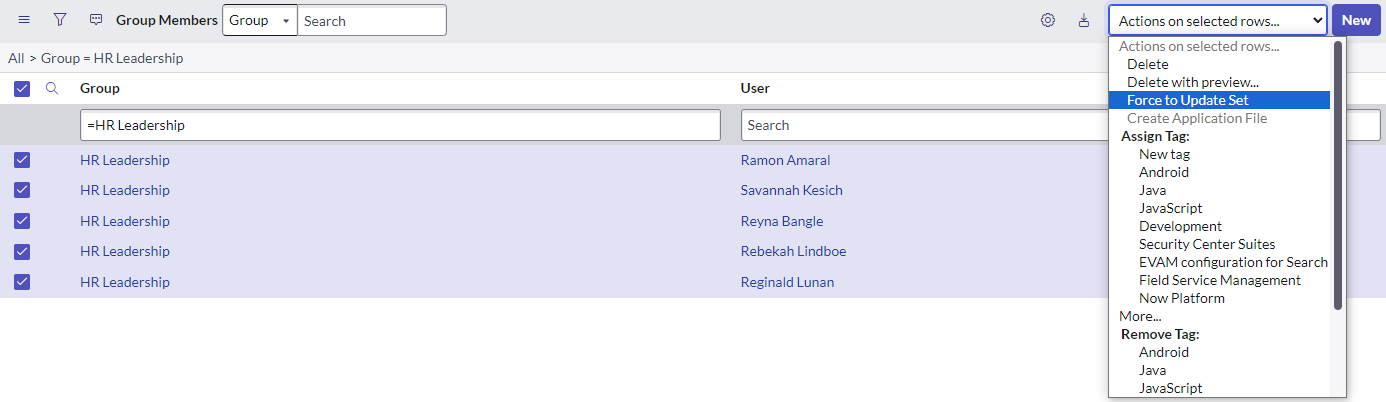
One of the more clutch functions I’ve come across is the ability to force a record to an update set. In this post, we’ll be setting up a custom UI Action (two, actually) that makes this possible.
I will note that someone far more skilled than me has actually developed similar (and maybe better?!) functionality called Add to Update Set. You can check it out on ServiceNow Share or read about it on this Community post. I think this may actually be more powerful in that it automatically captures related records too… but I haven’t done a ton of research into it, and only found out about it while I was typing these words. So let’s get back to the original topic…
How this works
We can set up a super simple UI Action and UI List Action that allows us to *force a specific record to an update set. That way, when we’re moving update sets between environments, we’re ensuring we capture the unique sys_id of a record in addition to all of its data. Ultimately, this means we won’t have sys_id mismatches between our environments.
You can of course export and import the XML of a record. But this method means that when you retrieve your update set in your next environment, you don’t need to take any additional action. That’s the beauty of it.
Setting up the UI Actions
Follow these instructions to get yourself all set up. The numbering continues after the code block, so keep that in mind! Please note that if I
- Head on over to System Definition > UI Actions and create a New record
- In the Name field, enter Force to Update Set
- Choose a Table of Global
[global] - I’ve checked the box to make Form link true
- My Order is 100, my Action name is empty (or whatever you want)
- Show update checkbox should be true, but Show insert should be false
- I’ve added the condition
gs.hasRole('admin') - Add this code to your script:
//Commit any changes to the record
current.update();
//Check to make sure the table isn't synchronized already
var tbl = current.getTableName();

//Push the update into the current update set
var um = new GlideUpdateManager2();
um.saveRecord(current);

//Query for the current update set to display info message
var setID = gs.getPreference('sys_update_set');
var us = new GlideRecord('sys_update_set');
us.get(setID);

//Display info message and reload the form
gs.addInfoMessage('Record included in <a href="sys_update_set.do?sys_id=' + setID + '">' + us.name + '</a> update set.');
action.setRedirectURL(current);- Save this record.
- Now, uncheck Form link and instead check List choice
- Insert (or Insert and Stay)
And you’re done!
Important notes
Forcing a record generally captures it in the Global application scope. So you’ll need to make sure you’re forcing your records to a Global update set. You can check this by pulling in the Application column when viewing the records in your update set.
You can do this from a record or from the list view. The list view obviously enables you to do multiple records at once, but otherwise, there’s no difference in the result!
This only captures the record you are currently looking at. So if there are related records, you have to execute this action to them to. And example of this would be for capturing a Group [sys_user_group] record. If you want to also capture the Group Roles [sys_group_has_role], you’ll have to check the boxes on that related list from the Group [sys_user_group] record. Obviously, you’ll want to make sure that the role already exists in your next environment (if you created the role within the same batch, you’ll be all set). I think the Add to Update Set functionality that I described at the very top of this post would prevent you from needing to force related records separately.