My Favorite SNUtils Slashcommands

If you haven’t already, I would highly encourage you to install SNUtils onto your browser. It’s a highly powerful tool that makes working in ServiceNow much quicker.
(Note: there are two different versions of SNUtils: onPrem and regular. They differ in how your instance URL is set up (xyz.service-now.com versus otherwise). To figure out which one works best for you, check out the links.)
Here are a few of my favorite features:
Dot-walking in Personalize List
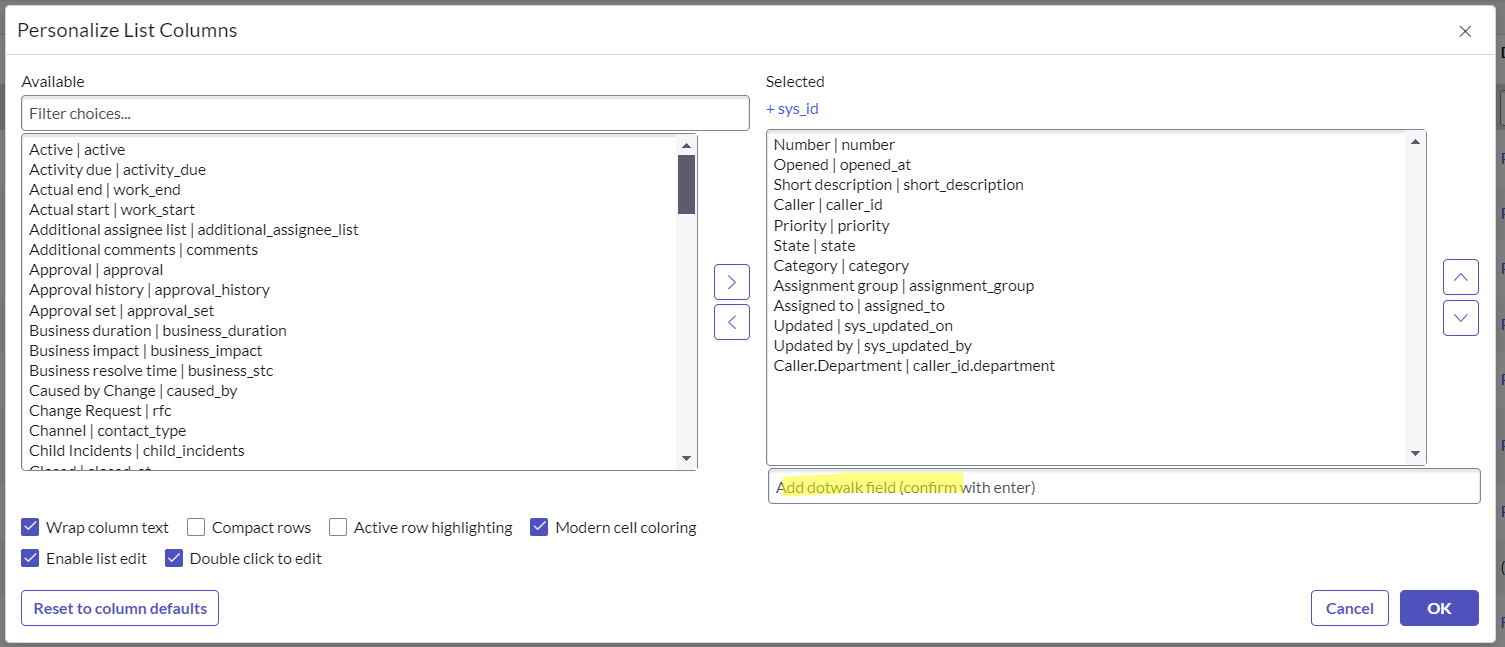
I just figured out how to make this work, and I’m so excited at how much easier this will make my life. With SNUtils, you can dot-walk into fields when personalizing a list view. Simply double-click after you open the Personalize List menu (or type /tn) and you’ll have the option to type in whatever field value you want:
The ability to search sys_id’s
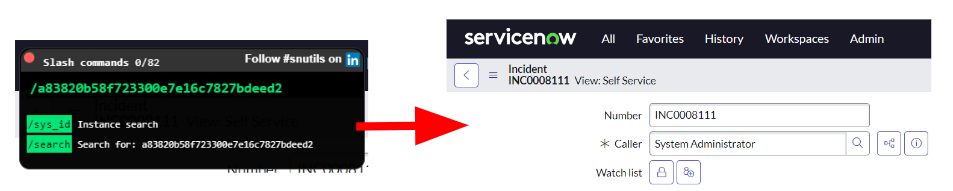
Probably one of the most useful features of SNUtils is the ability to quickly locate what record a sys_id is associated with. Simply by typing /sys_id, you can easily locate the record in question. This makes troubleshooting a breeze.
The /pop command
If you’ve ever opened a record in a new tab, you may notice the top navigation menu disappears. This can make it annoying to navigate elsewhere in the platform; if you type /pop in the slashcommand menu, your tab will refresh with the navigation menu up top.
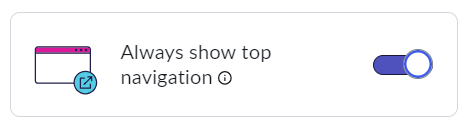
Fortunately, there’s also a way to force the top navigation menu to always load in the Next UI by updating your preferences. If you go to Preferences > Display > Always show top navigation, and turn the slider on, you won’t need to use /pop anymore.
Opening table config with /-t
Type in /-t when viewing any record to be taken to the configuration record for the table. If you’re on the User [sys_user] table, for example, this action will take you to view the [sys_db_object] record of the table – where you can modify columns, controls, application access, and more.
Double-clicking or using /tn to show field names
No more are the days of going to the table structure or right-clicking and “Show"ing on a field to find column names, table names, or field values. Use the /tn slashcommand or double-click on whitespace (or sometimes you have to double-click on the header of a record) to quickly see these values.
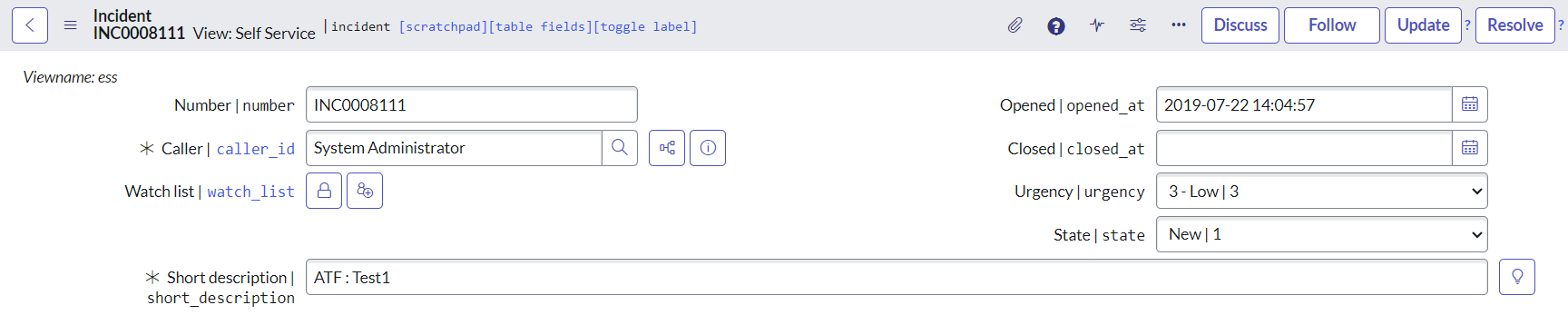
Bonus tip: This also makes identifying UI Actions easier – you’ll notice ?s appear next to UI Actions. Click on it to be taken directly to the UI Action record.
Bonus tip #2: Double-click on a column label to see information about the field such as its type, name, value, and easily copy the value. If you’re on a choice field, this will also show you all of your options with their respective values.
Custom slash commands
You can also create custom slash commands to quickly navigate to whatever pages you want. I’ve used this to quickly hop to different tables, like Assignment Rules (using my custom command /ar), HR Services (/hrs), or more. You can customize these to pass certain views, search certain fields (I’ve set up my Assignment Rules command to search the name column automatically, so I can type /ar VIP to find all records that have a name starting with VIP), and more.
I struggled with finding out how to create my own custom slash commands, so if you’re in the same boat, here’s the how-to: simply click your extensions menu in the top of your browser window, and then click on SNUtils. This will open a little window where you can enter your own and read more about what comes out-of-the-box. When I say “in the top of your browser window,” I’m referring to the right-side of the Bookmark page icon – not opening your settings menu and opening the extensions folder.
Code search with /code
If you’ve ever used Studio, you can know that you can code search right in there. Using the built-in /code command will launch you into a code search with whatever query you include. This makes finding logs or specific bits of code easy.
What else?
There are a ton of other commands that I haven’t even uncovered yet… I highly encourage you to check out the docs and create some of your own.