Smart Navigation
Last update: July 10, 2024
Smart Navigation
We just learned about favorites; favorites are a great way to quickly access the pages you most frequent. But often times there’s a quicker way, simply by using built-in commands directly in the filter navigator.
This becomes super handy as you get more familiar with the platform. In time, you’ll start to memorize the names/values of tables.
Quick tip: An easy way to figure out what your table’s value is, when looking right at a record or table view, is to look at your URL. If you’re looking at the User [sys_user] table, you’ll spot the value of the table in your URL. You can ignore the _list.do.

Jump right to a table with .list
If you know the value of your table – for example User [sys_user], you can simply type the table value into your filter navigator with .list appended to get there. Instead of having to search for User and navigate through the User Administration application menu (what’s an application menu? Don’t worry, we’ll get there!) or click and scroll through your favorites, use this navigation hack!
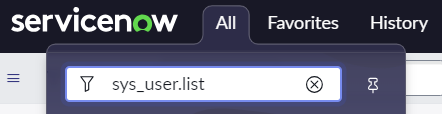
Note: If you’re trying to navigate directly through the URL, rather than the filter navigator, you’ll have to append _list.do to your table name. See the first screenshot (with the table name highlighted) for an example.
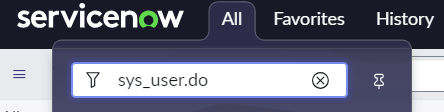
Quickly create a record with .do
Sometimes you have a need to quickly create a record. Usually, you’d do this by clicking the New button at the top right of most list views. You can also do this by appending .do to your table value, similar to how we use .list above.